

Import bills from other ledger apps, banks, or your own spreadsheet into the app. Both CSV and Excel (.xlsx) are supported, with automatic column mapping, categorization and de-duplication. Not sure how to organize your data? Download the template below and fill it in.
Bill Import Template.csv: Includes the header row and 6 sample rows — fill it in for zero-config recognition. Download Template
Where to import
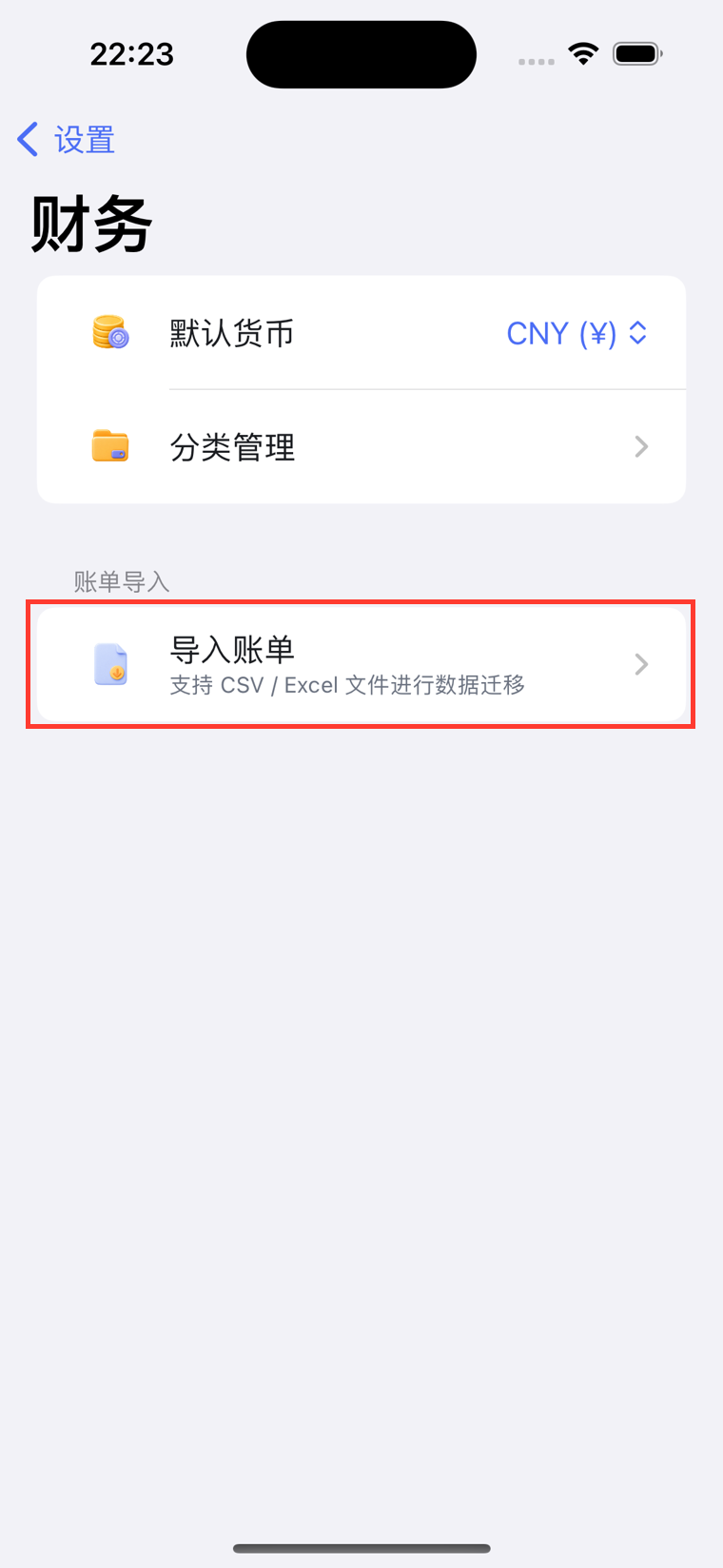
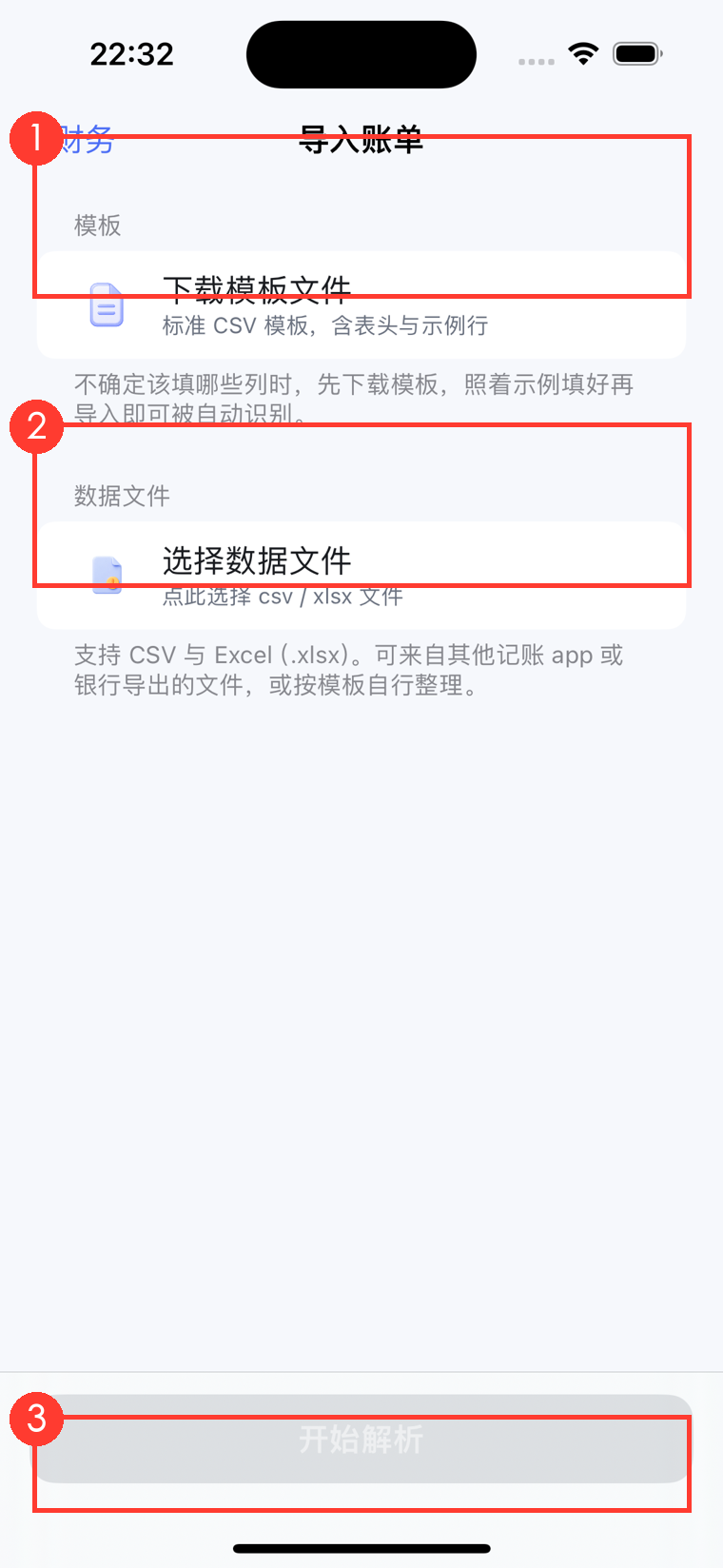
Settings → Bill Import → Import Bills. It opens a dedicated import page with three steps, top to bottom:
- Download the template — if you’re not sure how to organize your data, grab this template and fill it in.
- Choose your data file — pick the CSV / Excel file you want to import.
- Start parsing — tap the bottom button to enter the preview & confirm page.
Supported files
| Type | Notes |
|---|---|
| CSV | Comma-separated. UTF-8 / GB18030 / UTF-16 encodings are auto-detected. |
| Excel | .xlsx (the old .xls is not supported — save as .xlsx in Excel first). |
Your data can come from
- The app’s template: fill in the downloaded template for zero-config recognition.
- Exports from other ledger apps: export to CSV / Excel.
- Bank / payment statements: export to CSV / Excel.
- Your own spreadsheet.
Non-standard column names are fine: if a column can’t be recognized, you’ll be asked to manually point out which column is the date and which is the amount — it imports just the same.
Recommended: use the template
The most reliable way is to download the template first, fill in your data, then import. The template columns are:
| Column | Required | Notes | Example |
|---|---|---|---|
| Transaction time | Date, or date + time | 2026-05-01 12:20 |
|
| Income / Expense | Enter “Expense” or “Income” | Expense | |
| Amount | A positive number; direction is set by the Income/Expense column | 32.50 |
|
| Category | Top-level category name; leave blank to auto-guess | Food / Transport / Shopping… | |
| Account | Which wallet paid for it | WeChat / Bank | |
| Note | What it was for, or extra remarks | Weekday lunch · split with a colleague |
Key points
- Always enter amounts as positive numbers — whether it’s an expense or income is decided by the Income/Expense column, so don’t use a minus sign.
- Time accepts many formats:
2026-05-01 12:20:00,2026/05/01,2026年05月01日all work, interpreted in Beijing time. - Category can be left blank — the app will guess the category from the Note, and you can refine the uncertain ones with AI.
Mapping from other exports
No need to rename columns — the app recognizes these common names automatically:
- Date column: transaction time / time / date / record date / bill time / date / time
- Amount column: amount / money
- Direction column: income/expense / type; or separate “Income” and “Expense” columns; or a signed amount
- Description column: description / item / title / counterparty / memo
- Category column: category / class / top-level category
- Account column: account / payment method / wallet
- Note column: note / memo / description
As long as the file has a date and an amount (or separate income/expense columns), it can be imported.
What the preview page shows
After you tap “Start parsing”, the preview page shows:
- Scan results: four counts — parsed rows, importable, already exists (skipped), and invalid (skipped).
- Categories unique to the imported data: categories in your file that the app doesn’t have yet (e.g. “Pets”, “Baby”) are listed and can be created as your own custom categories with one tap; turn the switch off and those records fall back to “Other Expense”.
- Refine with AI: for records the auto-categorizer isn’t sure about, tap to re-categorize with AI.
- Sample preview: a few rows are shown so you can check the format.
Once everything looks right, tap “Start Import” at the bottom.
Automatic de-duplication
The app uses time + amount + title to identify the same transaction:
- Duplicate rows within the file, and records already in your ledger, are skipped automatically and counted as “already exists”.
- So re-importing the same file won’t create duplicates, and resuming an interrupted import is safe.
Large files are fine too: parsing, preview and writing all run in the background without freezing the UI, and writes are saved in batches with a progress indicator.
Will my bills be uploaded?
Parsing, de-duplication and rule-based categorization all happen on your device. Only when you actively tap “Refine with AI” are the title / note of the uncertain records sent to the categorization service — never the amount, account or other sensitive fields.
FAQ
The income/expense direction is reversed after import?
Check the Income/Expense column. Enter amounts as positive numbers and let the Income/Expense column express the direction — don’t use both a minus sign and “Expense”.
It says “header not found” or “file encoding not recognized”?
Usually the file was re-edited or has an unusual encoding. Re-organize it with the template, or “Save as CSV UTF-8 / xlsx” in Excel and try again.
Can the old .xls format be imported?
No — please save as .xlsx in Excel.
What if a category was guessed wrong?
Before importing, tap “Refine with AI” on the preview page; after importing, you can also edit the category of each entry in the ledger.
Still have questions?
If you run into trouble importing, email us — we respond within 7 business days.