

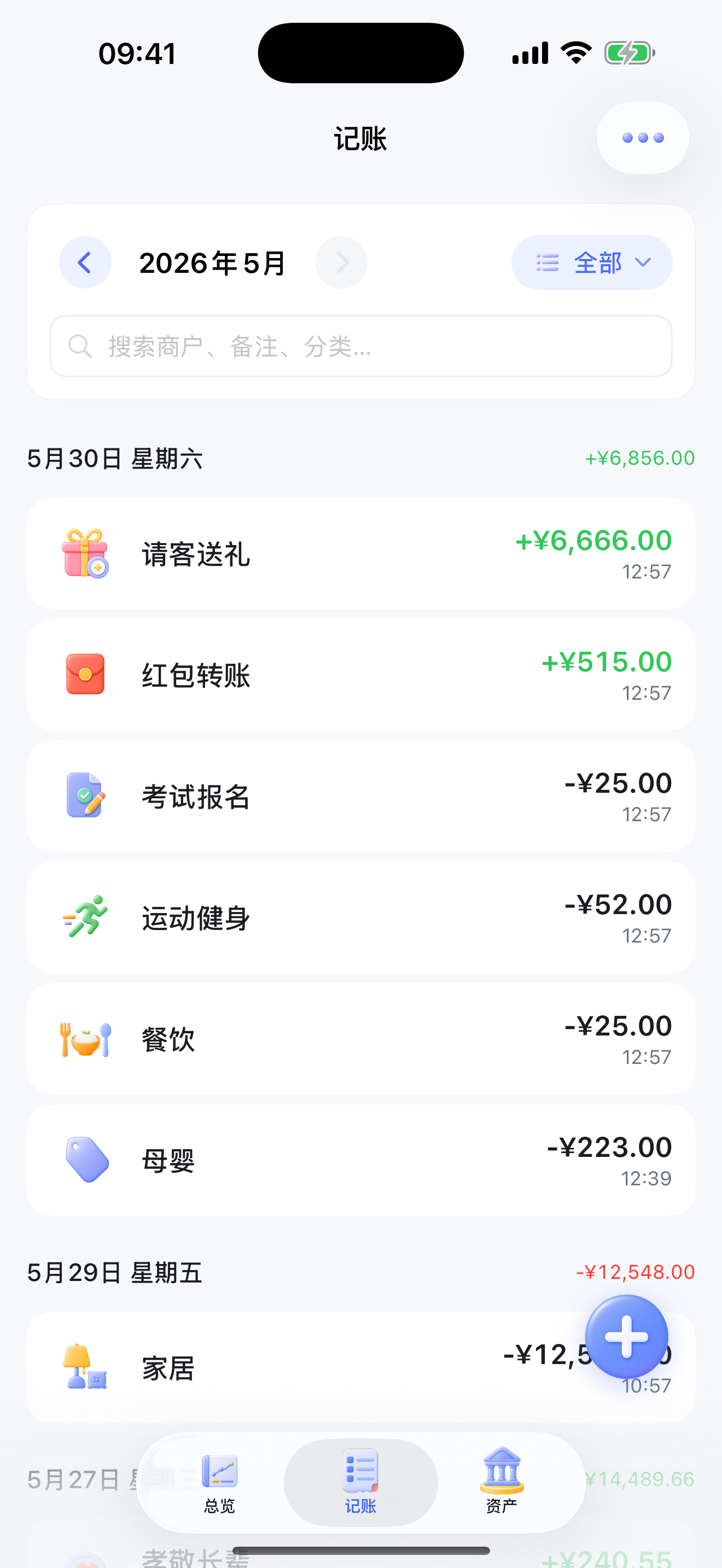
Daily logging starts from “Finance → Ledger.” Tap the plus button in the bottom-right corner to add a new income or expense.
Steps
- Open the “Finance” module and switch to the “Ledger” tab.
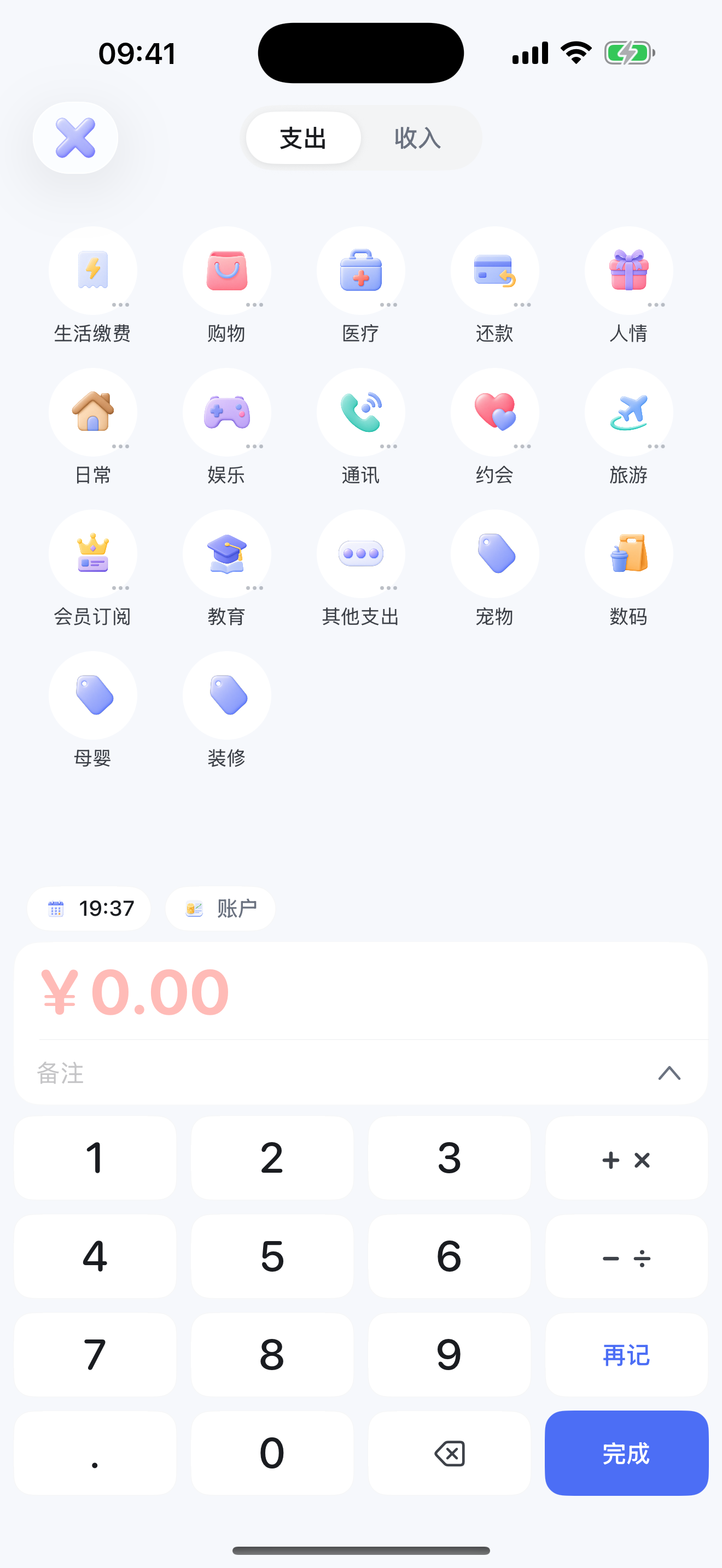
- Tap the “+” in the bottom-right corner to open the new entry page.
- Choose Income or Expense. Expense fits spending like shopping, dining, and transport; Income fits earnings like salary, bonuses, and refunds.
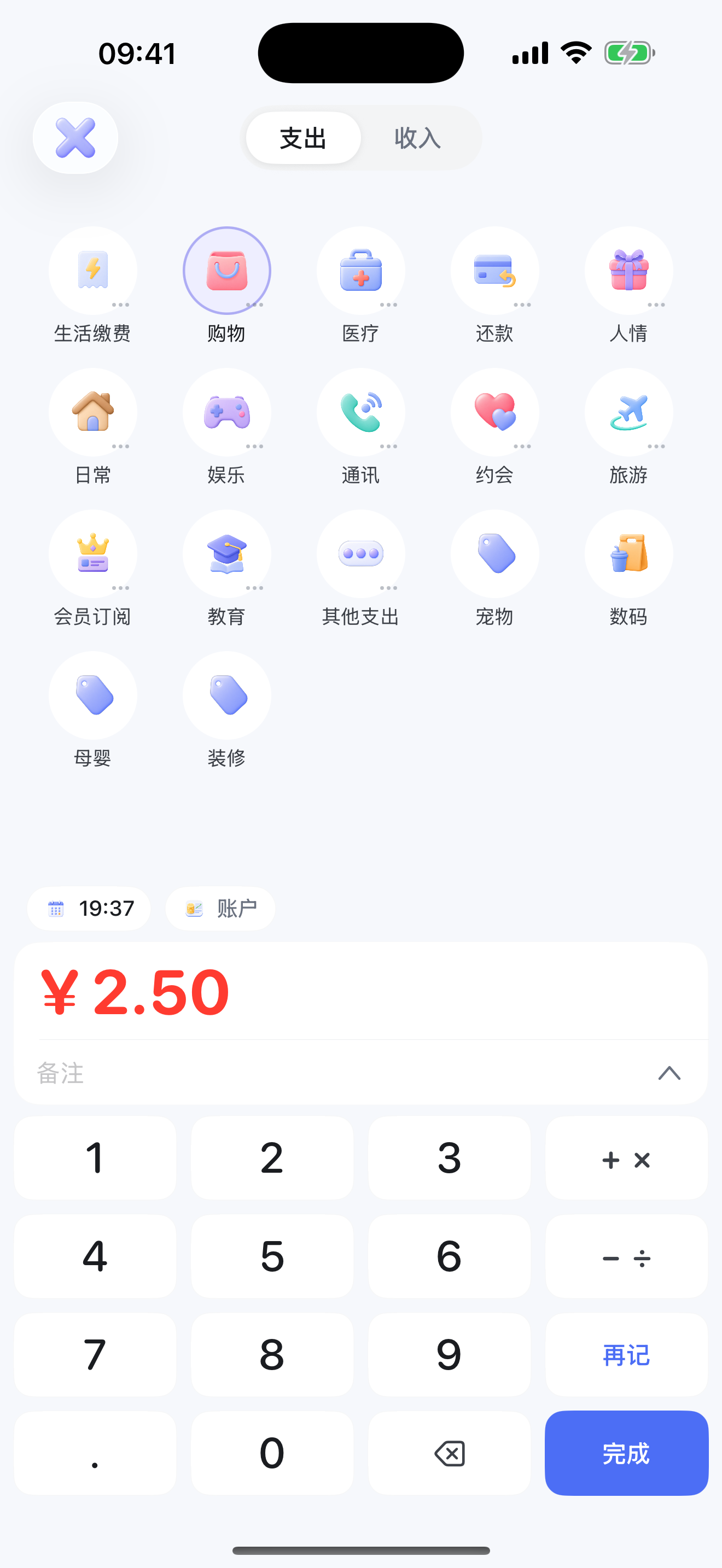
- Pick a category and enter the amount. Just type the number for the amount—no plus or minus sign needed.
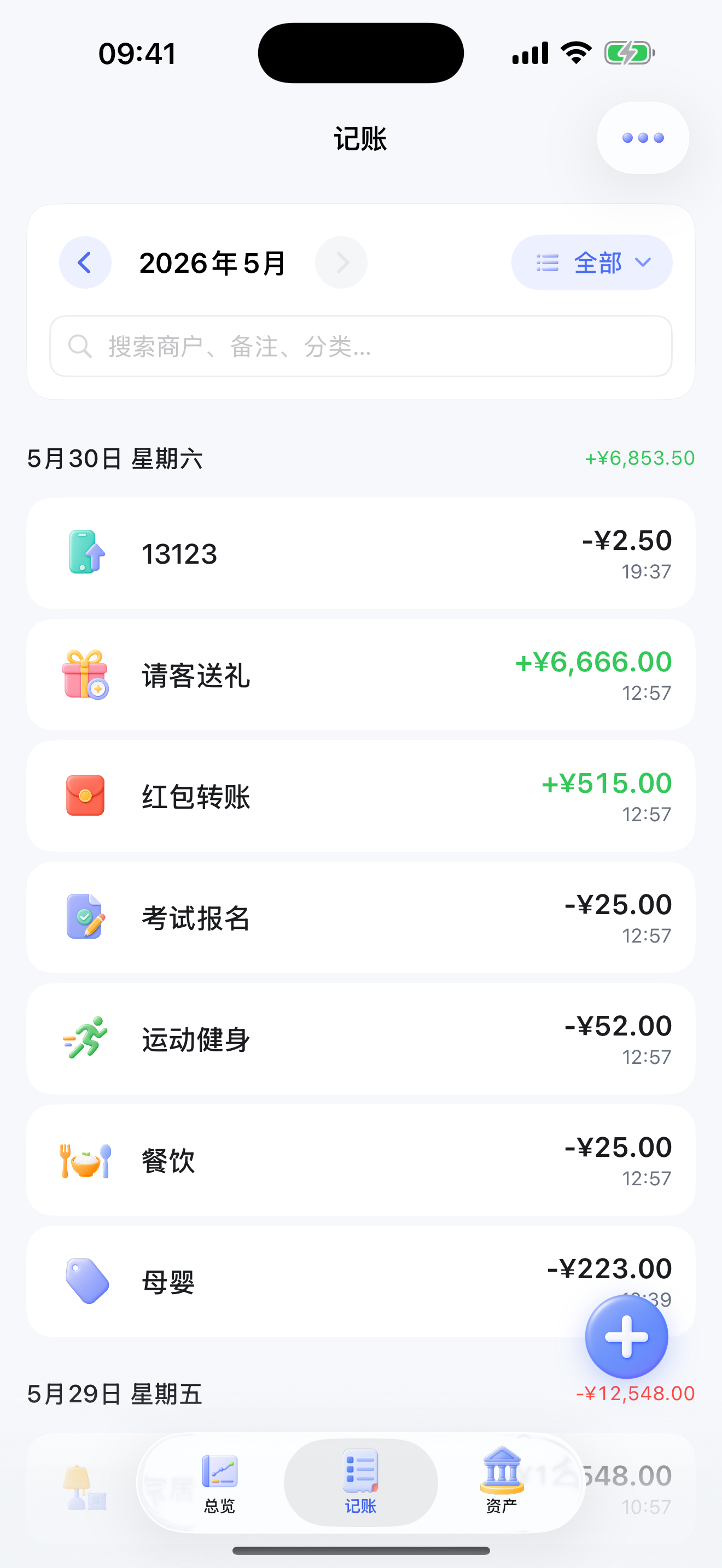
- Tap “Done” to confirm, and the record will appear in the ledger list.
Continuous Logging: Use “Log Again”
When you want to log several entries in one go, there’s no need to return to the list and re-enter for each one. After saving the current entry, tap “Log Again” on the new entry page to continue with the next one—logging the day’s transactions back to back feels much smoother.
Key Screens
FAQ
What if I logged it wrong?
Tap the record in the ledger list to edit its amount, category, time, account, and notes, or to delete it.
Do I have to choose an account?
Not necessarily. Accounts are used to sync with asset balances. If you just want to log a transaction first, you can leave the account unselected.
Should I enter expense amounts as negative numbers?
No. Always enter amounts as positive numbers; whether it’s an Expense or Income is decided by the toggle at the top.